 ...
... GolfBUD Navigation
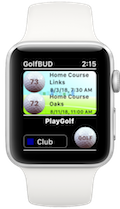
The home screen of your GolfBUD is an empty table view. Pressing the "PlayGolf" button will take you to the Scorecard of a newly created course. Pressing the "TeeTime" button will create a golf course and open the tee time view. Both these courses are created with default values and saved automatically. Use the delete swipe gesture or the "Edit" button to delete a course. Courses can also be moved in the table view.
On the home screen the "i" button accesses the tee time editor and the "GOLF" ball button duplicates the selected course. Tete-A-Tete is the control for sending your course data base to AppleWatch.
The Course Menu
No courses on course menu
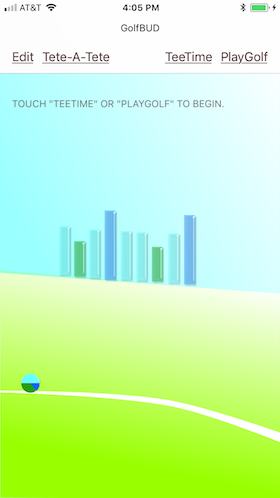
- No Golf Courses
- Navigation Menu
Press "PlayGolf"
One Course Has Been Added
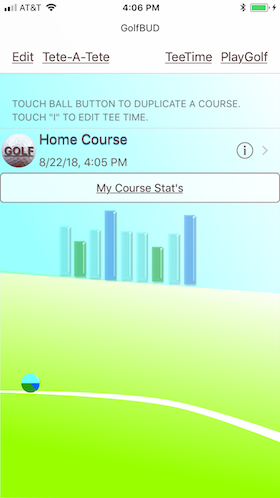
- "Home Course" added
- "GBUD" button, duplicates course
- "i" button accesses tee time editor
Press "PlayGolf"
One Course Has Been Added
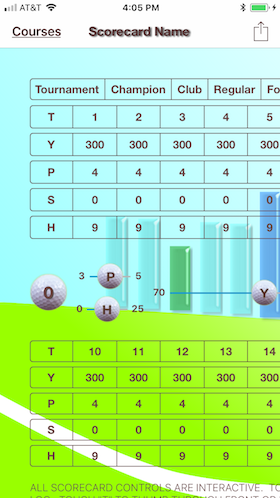
- "Home Course" added
- Scorecard (portrait view)
- Slide golf balls to edit values
- Press "cancel" to delete the course
- Press "save" to save the course
Press "i"
Edit Your Course Name and Tee Time
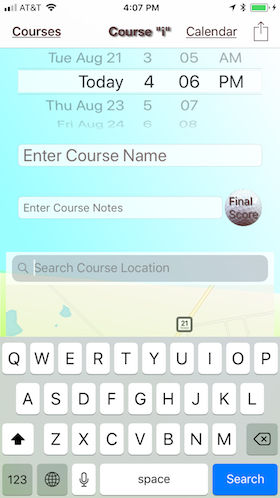
- Edit your tee time
- Add a course name and notes
- Locate the course
- Press "Done" to save
- Press "Delete" to delete the course
"Edit" button
Press the "Edit" Button to:
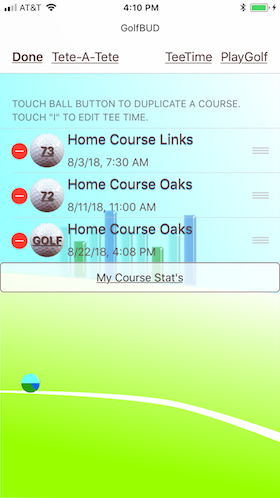
- Delete Courses using red "-"
- Move courses using bars (press and hold bars then slide course)
- Press "Done" to cancel or when finished
Swipe to Delete
Use the Swipe Gesture
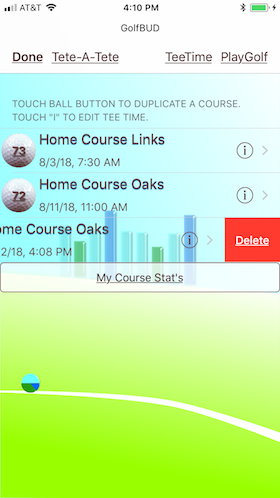
- Delete by swiping from right to left
- Press "Done" when finished
- "Delete" is final
- Tap away from the course to cancel
"GBUD" Ball
Press the "GBUD" Ball Button:
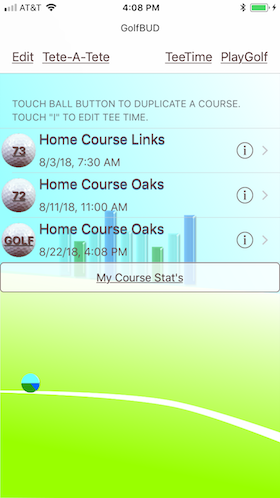
- A new duplicate course is created
- The course name is the same
"GBUD" Scorecard
Scorecard created from previous round
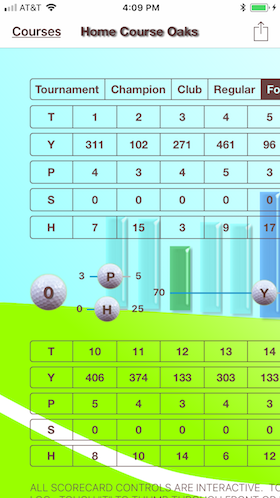
- Par, yards, and handicap are entered
- Tee positions are entered
- Course rating and slope are entered